
Download AltTab – free window manager for Mac
Introduction: Why AltTab Matters on macOS
For many Mac users, the default ⌘‑Tab switcher feels limited when juggling dozens of open applications. AltTab answers that frustration by bringing a familiar, Windows‑style Alt‑Tab experience to macOS, while adding a suite of personalization tools that let you shape the switcher to match your workflow. The app is completely free, lightweight, and designed with a focus on speed and stability, so you can toggle between windows without a noticeable performance hit.
Whether you’re a power user who needs rapid context‑switching, a designer who prefers a larger preview grid, or a developer who likes to hide noisy background apps, AltTab gives you granular control over shortcuts, themes, and visibility. Its two‑profile system means you can switch between a “coding” setup with minimized distractions and a “creative” setup with larger thumbnails in a single click. In short, AltTab transforms window management from a static, one‑size‑fits‑all process into a dynamic, customizable part of your daily Mac routine, helping you stay focused, reduce mouse‑click fatigue, and ultimately boost productivity.
Key Features & Benefits
- Windows‑style Alt‑Tab interface: Mimics the classic Windows switcher with live previews, making the transition for Windows‑savvy users seamless.
- Customizable shortcuts: Assign your own key combinations for switching, canceling, closing, or minimizing windows.
- Two independent profiles: Save distinct configurations for different tasks—e.g., a minimal profile for coding and a vibrant one for design work.
- Theme options: Choose between macOS‑styled or Windows‑styled themes, and tweak window size, font size, and opacity.
- Application blacklist: Hide specific apps from the switcher to keep the view uncluttered and maintain focus.
- Shortcut exclusion per app: Prevent conflicts by disabling AltTab shortcuts for apps that already use similar key combos.
- Lightweight and free: No hidden fees, no ads, and a minimal memory footprint that respects your Mac’s resources.
Pros
- Highly intuitive for users coming from Windows.
- Deep customization without requiring scripts or terminal commands.
- Two profiles make task‑specific setups effortless.
- Blacklist feature improves focus by hiding unnecessary windows.
- Free and regularly updated with bug fixes.
Cons
- Only available for macOS (no Windows or Linux version).
- Advanced theme tweaks may require a brief learning curve.
- No built‑in cloud sync for profiles across multiple Macs.
Overall, AltTab delivers a polished, feature‑rich experience that fills a noticeable gap in macOS window management. Its free price point and extensive customization options make it a standout tool for power users.
Installation & Usage Guide (Including Compatibility)
Getting AltTab up and running is straightforward. Follow these steps to install and start customizing your window switching experience:
- Download the installer: Visit the official AltTab website and click the “Download for macOS” button. The file is a signed .dmg, ensuring a secure download.
- Open the DMG: Double‑click the downloaded file; macOS will verify the package. Drag the AltTab icon into your Applications folder.
- Grant permissions: On first launch, macOS will request Accessibility access so AltTab can monitor window changes. Open System Settings → Privacy & Security → Accessibility and enable AltTab.
- Configure your first profile: The app opens with a default profile. Use the Settings panel to choose a theme, set the preview size, and define your primary shortcut (default is
Option+Tab). - Set up shortcuts: Under the “Shortcuts” tab, you can map additional actions such as “Close window” (
Option+W) or “Minimize window” (Option+M). Remember to avoid conflicts with existing macOS shortcuts. - Blacklist apps (optional): If you want to hide specific applications, add them to the blacklist under the “Advanced” tab. This keeps the switcher tidy during focused work sessions.
- Switch profiles on the fly: Click the profile icon in the menu bar to toggle between your saved configurations without restarting the app.
AltTab is built for macOS 10.15 (Catalina) and later, including Monterey, Ventura, and Sonoma. It runs natively on both Intel‑based and Apple Silicon Macs, delivering consistent performance across hardware generations.
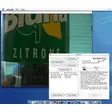
Once installed, using AltTab is as simple as pressing your chosen shortcut. A preview grid appears, allowing you to navigate with arrow keys or your mouse. Press Esc to cancel, Enter to select, or use the additional shortcuts you configured for quick actions. The real power lies in the ability to fine‑tune the interface to match your personal workflow, making multitasking on a Mac feel as fluid as it does on any other platform.
Frequently Asked Questions
Is AltTab completely free or does it have hidden costs?
AltTab is 100 % free. There are no paid tiers, in‑app purchases, or ads. All features, including themes and profiles, are available to every user.
Can I use AltTab on a Mac with an M1 or M2 chip?
Yes. AltTab runs natively on Apple Silicon (M1, M2, and later) as well as Intel‑based Macs, providing the same smooth experience on both architectures.
How do I hide a specific application from the AltTab switcher?
Open AltTab’s Settings, go to the “Advanced” tab, and add the unwanted app to the blacklist. The app will no longer appear in the preview grid.
Does AltTab interfere with macOS’s native shortcuts?
AltTab uses its own customizable shortcuts, and you can disable them for any app that already uses similar keys, preventing conflicts with the system or third‑party tools.
Can I sync my AltTab profiles across multiple Macs?
Currently AltTab stores profiles locally. While there’s no built‑in cloud sync, you can manually copy the profile files from the Application Support folder to another Mac.
Conclusion & Call to Action
AltTab fills a niche that many Mac users didn’t even realize existed—an efficient, customizable window switcher that feels both familiar and fresh. By offering a Windows‑style interface, deep shortcut control, dual profiles, and a sleek theming engine, it empowers you to navigate dozens of open windows without breaking your focus. The free price tag and regular updates make it a low‑risk addition to any productivity toolkit. If you’ve ever wished macOS could give you quicker access to the right window at the right time, give AltTab a try. Download it today, set up your first profile, and experience a smoother, more intentional workflow on your Mac.
Download AltTab now and start customizing your window management experience for free.